
Mouse acceleration significantly hinders performance in shooters, and Marvel Rivals is no exception. Despite its detrimental effect, the game defaults to enabled mouse acceleration, lacking an in-game toggle. This guide details how to disable it.
Disabling Mouse Acceleration in Marvel Rivals
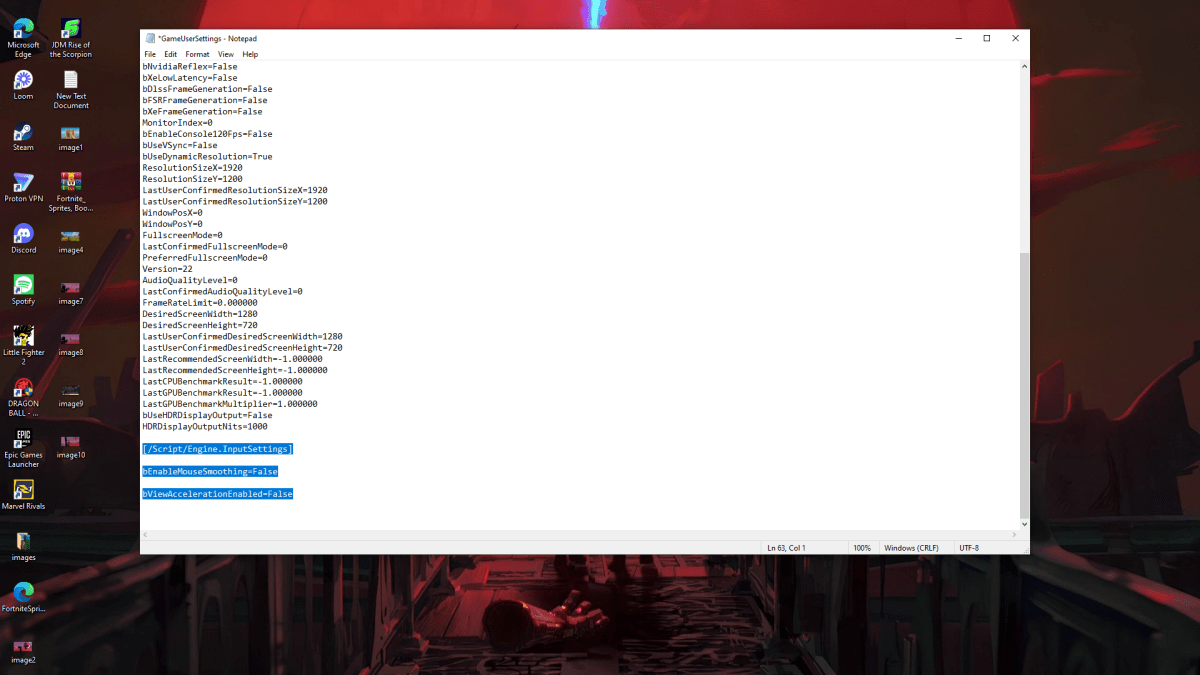
Because the game lacks an in-game setting, you must modify the game's configuration file. Follow these steps:
- Press Windows key + R, then type
%localappdata%. - Locate the "Marvel" folder, then navigate to "MarvelSavedConfigWindows".
- Open "GameUserSettings.ini" using Notepad (or a similar text editor).
- Add the following lines to the end of the file:
[/Script/Engine.InputSettings]
bEnableMouseSmoothing=False
bViewAccelerationEnabled=False- Press Ctrl + S to save, then close the file.
- Right-click "GameUserSettings.ini", select "Properties", check "Read-only", and click "Apply" and "OK".
This disables mouse acceleration within Marvel Rivals. For optimal results, also disable it in Windows settings:
- In the Windows search bar, type "Mouse" and select "Mouse settings".
- Click "Additional mouse options" in the top right corner.
- Navigate to the "Pointer Options" tab.
- Uncheck "Enhance pointer precision".
- Click "Apply" and "OK".
With mouse acceleration disabled in both the game and Windows, you'll experience a more consistent and predictable aiming experience.
Understanding Mouse Acceleration and Its Impact
Mouse acceleration dynamically adjusts sensitivity based on mouse movement speed. Faster movements result in higher sensitivity, while slower movements lower it. While convenient for general use, this inconsistency is detrimental to shooters like Marvel Rivals.
Consistent sensitivity is crucial for building muscle memory and improving aim. Mouse acceleration prevents this by constantly altering your sensitivity.
Now, with mouse acceleration disabled, enjoy improved aim and a more responsive gameplay experience in Marvel Rivals.
Marvel Rivals is available now on PS5, PC, and Xbox Series X|S.